
What are the technical requirements for accessing the Racking Inspection Training Online course?
To access the Racking Inspection Training Online course, you need an internet-connected computer, laptop or tablet with a current web browser, reliable internet access and working audio. You will also need your course login details and a suitable place to study without interruption; Able Racking can advise if you experience access or compatibility issues.
Accessing Able Racking’s Racking Inspection Training Online course requires a suitable internet-connected device, a supported and up-to-date web browser, reliable internet access, working audio and valid course login details. A desktop computer or laptop is generally the most suitable option, although a tablet may be suitable if it supports the course platform and its learning functions.
Recommended device and browser
Use a modern desktop computer, laptop or tablet with an up-to-date operating system and web browser. Current versions of commonly used browsers should provide the best compatibility. Avoid using an outdated browser, as this can affect video playback, interactive content, assessments or the display of course materials.
A larger screen is preferable when studying inspection photographs, diagrams and other detailed course content. A mobile phone may not provide a practical learning experience, particularly where you need to review technical details or complete assessment activities.
Internet connection
You need a stable internet connection to sign in, load course materials and access any videos or interactive elements. Wi-Fi, wired broadband or a reliable mobile data connection may be used. If your connection is shared or inconsistent, course content may take longer to load or may pause during playback.
Where possible, study from a location with a dependable connection. If you are using a workplace network, its security settings may restrict access to the learning platform, media or assessment functions. Your IT administrator may need to allow the relevant course services.
Audio and video
Working speakers or headphones are required where the course includes spoken instruction or video. Headphones can be useful in a shared workplace and may make narration easier to hear. If video content is included, your browser must also be able to play standard online media.
Check your device volume, browser permissions and audio output before starting. If your device has a camera or microphone, these are not normally required unless the course instructions specifically state otherwise.
Login and account access
You will need the course login details provided to you by Able Racking. Enter these carefully and keep them secure. If your organisation manages access centrally, use the account or sign-in process supplied for your booking rather than creating a separate account.
Do not share your login details with another person. Individual access helps ensure that course progress and any completed assessment are recorded against the correct participant.
Browser settings and permissions
Your browser should allow essential cookies, JavaScript and pop-ups required by the learning platform. Strict privacy settings, ad-blocking tools or workplace security software can sometimes prevent a lesson, assessment or certificate page from opening correctly.
If a page does not load, try refreshing it, signing out and back in, or opening the course in a current browser. Clearing the browser cache may also help. Avoid repeatedly opening the course in several browser tabs, as this can occasionally interrupt progress tracking.
Study environment and supporting materials
Choose a quiet place where you can concentrate and complete the course without interruption. You should be able to read on-screen content, listen to audio and make notes as required. Keep any course instructions or supporting documents available, particularly if Able Racking has provided them as part of your enrolment.
If you need to use workplace equipment or a shared computer, confirm that you have permission to install any necessary browser updates and that your organisation’s security controls will not block the course platform.
Accessibility considerations
Before beginning, check that the device and browser work with any accessibility features you use, such as screen magnification, keyboard navigation, captions or text-to-speech software. Display settings can be adjusted to improve readability, but very large text or high browser zoom may alter the layout of course pages.
If you have an accessibility requirement or are unsure whether your equipment is compatible, contact Able Racking before starting. The team can help identify access issues and advise on the most suitable way to complete the training.
Pre-course checks
- Confirm that your device is charged or connected to power.
- Install available operating system and browser updates.
- Test your internet connection and audio.
- Sign in using the course details supplied to you.
- Open the course materials to check that text, video and interactive elements display correctly.
- Allow enough uninterrupted time to work through the training and any assessment activities.
These checks reduce avoidable interruptions and help your progress to be recorded correctly. If you cannot sign in, the course content will not load or an assessment function is unavailable, contact Able Racking with details of your device, browser and the problem encountered. Providing a screenshot, where permitted by your organisation, can help the team diagnose the issue more quickly.
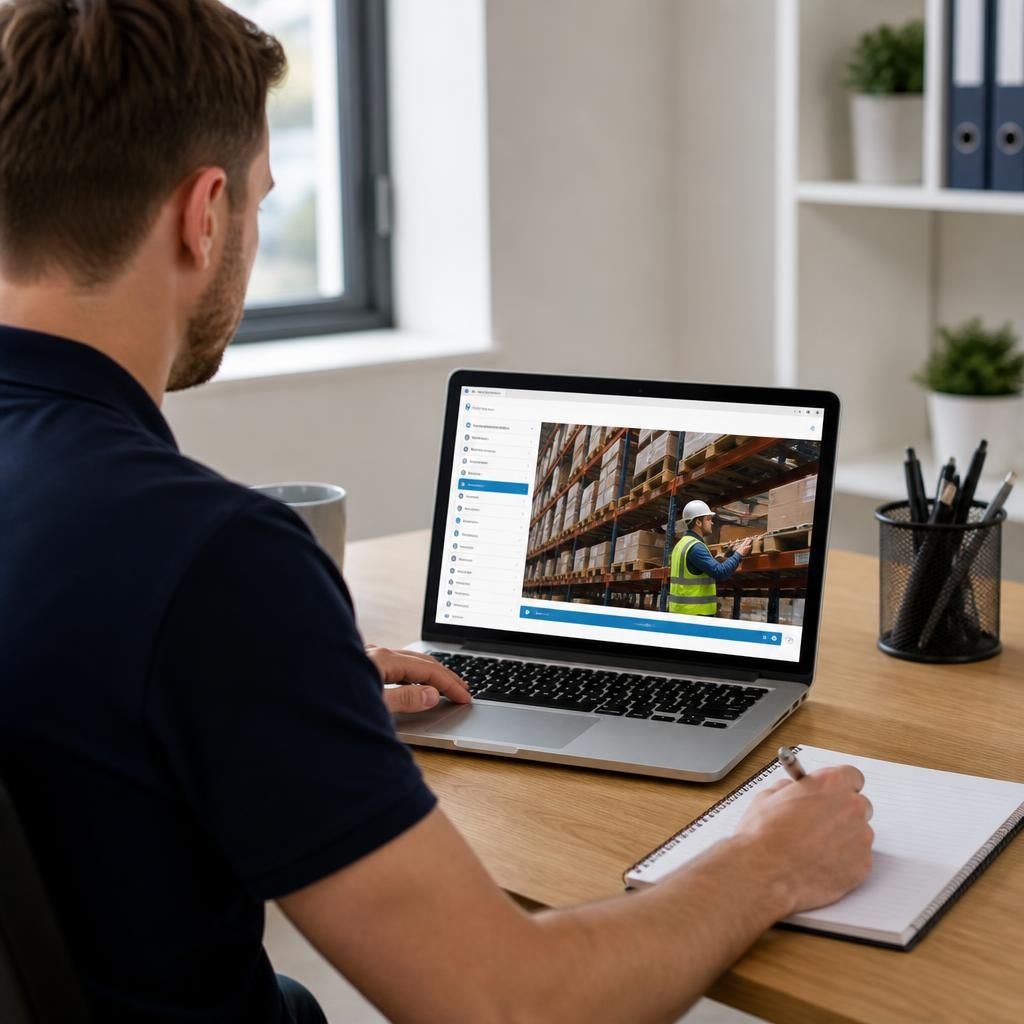
The most important technical preparation is to confirm that your device, browser, internet connection and audio work before starting the Racking Inspection Training Online course. Use an up-to-date desktop computer, laptop or compatible tablet, as a larger screen makes inspection photographs, diagrams and assessment content easier to review.
Open the course platform using the login details provided by Able Racking and check that the lessons, videos and interactive activities load correctly. Your browser should allow JavaScript, essential cookies and any required pop-ups. If your workplace network blocks course content, or you cannot sign in, contact your IT administrator or Able Racking before beginning. This helps prevent access problems from interrupting your progress or assessment.
Check Your Technical Requirements Before Starting
Check your device, browser, internet connection and audio before starting the Racking Inspection Training Online course. If you experience access or compatibility issues, contact Able Racking for practical guidance before you begin.